Close Menu
JustwebworldJustwebworld
  • Astrology
  • Business & Finance
    • Cryptocurrency
    • Make Money
    • Entrepreneur
    • Brands
    • Companies
    • Personal Finance
      • Banking
      • Insurance
      • Trading and Investing
  • Tech
    • Computing
    • Cybersecurity
    • Electronics
    • Android
    • Apple
    • Gadgets
    • Social Media
    • Mobile Apps
    • Softwares
  • Education
    • Vocabulary
    • Abbreviations
    • General Knowledge
    • Writing & Translation
  • Lifestyle
    • Beauty & Cosmetics
    • Fashion & Style
    • Furniture & Decor
    • Luxury
    • People & Relationships
    • Pets and Animals
    • Shopping
    • Parenting
    • Gardening
    • Birthdays
  • Health
  • Travel
  • Auto
  • Gaming
  • Food
  • Entertainment
  • Sports
Facebook X (Twitter) Instagram Pinterest YouTube LinkedIn WhatsApp Telegram
Friday, January 23
  • About
  • Contact Us
  • Advertise With Us
  • Disclaimer
  • Terms & Conditions
  • Privacy Policy
JustwebworldJustwebworld
  • Astrology
  • Business & Finance
    • Cryptocurrency
    • Make Money
    • Entrepreneur
    • Brands
    • Companies
    • Personal Finance
      • Banking
      • Insurance
      • Trading and Investing
  • Tech
    • Computing
    • Cybersecurity
    • Electronics
    • Android
    • Apple
    • Gadgets
    • Social Media
    • Mobile Apps
    • Softwares
  • Education
    • Vocabulary
    • Abbreviations
    • General Knowledge
    • Writing & Translation
  • Lifestyle
    • Beauty & Cosmetics
    • Fashion & Style
    • Furniture & Decor
    • Luxury
    • People & Relationships
    • Pets and Animals
    • Shopping
    • Parenting
    • Gardening
    • Birthdays
  • Health
  • Travel
  • Auto
  • Gaming
  • Food
  • Entertainment
  • Sports
JustwebworldJustwebworld
Home » Internet » An Easy Guide To Change Your Google Doc Margins

An Easy Guide To Change Your Google Doc Margins

By Ishi Agarwal Internet
Facebook Twitter LinkedIn Telegram Pinterest Reddit WhatsApp
Follow Us
WhatsApp Telegram

Have you ever felt the need to change the margins of your google doc? If yes, then this article is going to be of great help to you. Generally, google docs have a default setting for the margins. It is approximately one inch.

The margins present on the google docs not only sometimes appear unpleasing to the eyes but also consume a lot of space of the paper when they get printed.

Table of Contents

Toggle
  • How To Change Margins In Google Docs
    • Method 1- For changing the left and right margins only
    • Method 2- for changing the top, left, right and bottom margins
      • How to prevent any unwanted external changes in your Google doc
      • How to edit margins of a locked document?

How To Change Margins In Google Docs

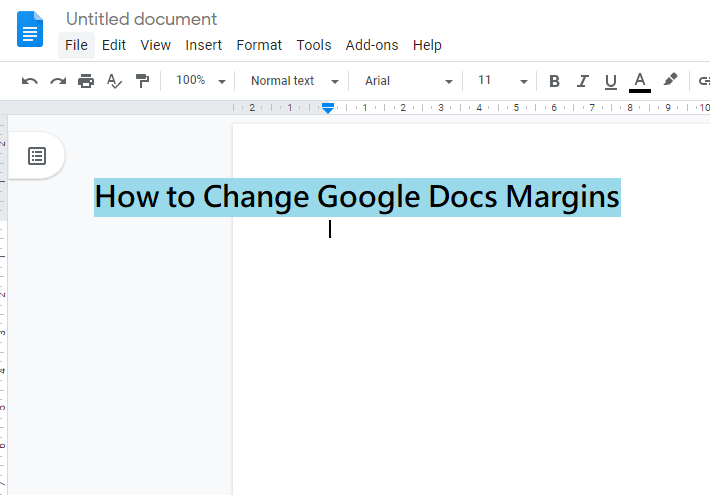
How to Change Google Docs Margins

This wastes a lot of paper which further increases the cost inculcated for getting the hard copies of these Google docs. Hence, many people prefer to change these marginsโ€™ settings to manage the space and page outlook. If you are also one of those wishing to make such changes in the settings, then is the right platform for you.

This article will guide through all the steps required for changing the margins of your goggle doc. The process mentioned is extremely easy to follow and very helpful too. One of the simplest ways is the fastest of all but has a disadvantage that is only capable of altering the side margins, that is the left and the right margins.

However, if you wish to alter the top and the bottom margins also then there is another method too. This method is a bit tricky and complicated but not very tedious to be followed.

Below given are the ways in which you can fulfill your purpose of changing the margins of your Google Docs.

Also Read: Unlock the Web! | Best Ways to Access Blocked Websites (Easy & Safe) Unlock the Web! | Best Ways to Access Blocked Websites (Easy & Safe)

Method 1- For changing the left and right margins only

If you are the one who wants to change only the left and right margins, then you can go with this method. This is the fastest and the easiest of all the methods available. It can be used by anyone even an amateur.

All you have to do is to navigate and open the Google Doc whose margin you wish to alter by navigating it or create the one depending on your need. Next, look for the ruler which is present on top of the page. On the ruler, you will see a triangle facing downwards with a rectangular shape above it.

To change the left margin, you have to click on this down-facing triangle and drag it as per your requirement of the left page margin. If you want to alter the right page margin, then you must find a triangle facing downwards on the right side of the page.

Find it and drag it towards the right to set the right page margin depending on your need. Keep in mind that you must click and drag the triangle and not the rectangular box above it as doing so will change the indentation setting of the paragraph and not the page margin.

Page Setup in Word

Method 2- for changing the top, left, right and bottom margins

If you need to alter not only the side margins but also the top and bottom margins, then this method is suitable for you. Firstly, you must open the document you want to alter or create one as per your demand. Then go to the โ€˜filesโ€™ tab and click on it.

Also Read: Latest Online Trends That You Need to Take Seriously Latest Online Trends That You Need to Take Seriously

From the drop-down list select the โ€˜page set upโ€™ option. Then from the appearing options select โ€˜marginsโ€™. A box will appear on the screen. In it mention the margin dimensions of your requirement in the box in front of the margin you wish to alter.

For example- if you want to change the bottom margin then enter the dimensions of the bottom margin in the box given in front of the โ€˜bottom marginโ€™. Similarly, you can change other margins too.

After making the entries, click on the โ€˜okโ€™ tab and your work is done. If you wish to move back to the previous settings that are the default ones, then you can choose, the โ€˜set as defaultโ€™ option in the margins option.

How to prevent any unwanted external changes in your Google doc

Since we all are well aware of the fact that there is no option of locking the margins of your Google docs, hence it becomes important for one to know how to prevent anyone from making changes to the margin settings of your document. You will be glad to know that it is still possible to prevent such an intervention of changing the margin settings of your doc.

If you have to share a document with another person but do not want them to alter the way it looks or the content it contains, then you can do it in a very simple yet effective way. All you have to do is it to, choose the pencil icon appearing on your screen.

Also Read: How to Reconnect With Old Friends Youโ€™ve Lost Touch With How to Reconnect With Old Friends Youโ€™ve Lost Touch With

Then select the โ€˜can commentโ€™ / โ€˜can viewโ€™ option in place of the โ€˜can editโ€™ option. Also if you are a recipient of a document and want to know if making a change to it is possible or not! Then, you just have to look up in the box and if it reads โ€˜view onlyโ€™ then it is clear that the document cannot be edited and it is a locked doc.

How to edit margins of a locked document?

Unchangeable document margins can be troublesome at times when the set margins do not fit as per your requirements. You can easily alter the margins by following the above-mentioned steps easily. But this can only be done if they are not locked by the owner of the document.

If you have received a document that is locked, but still you wish to edit it as per your requirements then still have a possibility. All you can do is to request the owner for giving you access to make such a change. To do so, you must press the box that reads โ€˜view onlyโ€™ and then select the โ€˜request edit accessโ€™ option.

Next, you will have to type in your request in the given text space and then click on the โ€˜send requestโ€™ option. Now, if the doc owner permits you then you can alter the doc otherwise not.

cards
Powered by paypal
Follow on WhatsApp Follow on Telegram
Share. Facebook Twitter Pinterest LinkedIn Tumblr Telegram WhatsApp Copy Link
Previous ArticleRouter Login Guide for Netgear, TP-Link, D-Link and Linksys
Next Article Internet Speed Test – Test Your Internet Connection
Ishi Agarwal

Ishi is a Professional Content writer and an Editor. She loves curating articles on various niches to spread awareness among her readers based on her research. When she is not writing, she loves baking and is a professional chocolatier. She researches not only on technical niches but has also written many blogs on fashion, travel and self-help.

Related Posts

Airtel Broadband: The Best Unlimited Data Plans for Your Home Internet

How to Choose the Best Proxy Provider for Your Needs

SumoSearch: Ultimate Tool for Phone Number Tracking

Jazz Balance Save Code | Jazz Balance Saver Code | Charges & Details

Hereโ€™s What the Future of The Internet Will Look Like: A Pocket Guide

Transactional Emails: Types And Best Practices

Leave A Reply

Subscribe to Blog via Email

Enter your email address to subscribe to this blog and receive notifications of new posts by email.

Join 43.3K other subscribers
Categories
Latest Posts

Why People Feel Less Hopeful About the Future ๐Ÿ˜”

GTA 6 Feels More Real Than Real Life ๐Ÿ˜ฎ๐ŸŽฎ โ€” And That Changes Everything

Confident Aging: How Senior Housing Supports Self-Assurance

Low-Deck Single Axle Trailer for Easier Equipment Loading

Why People Watch Less but Scroll More (The Psychology Behind Endless Scrolling)

How Investors Track Down Property Owners Using Public Records

Understand How Wind Emulators Upgrade Renewable Energy Training In Institutes

Expert Tips On Proper Use Of Septic System Cleaning Products

Discover Why An Online Tutor Job In Bangalore Is A Flexible Earning Option

Group Vs Customised Australia Trips: How to Decide What Suits You

The content on this website is provided solely for educational and informational purposes. We do not promote, endorse, or deal in any products, services, or activities mentioned. While we strive to share accurate and up-to-date information, we make no warranties regarding completeness, reliability, or accuracy. Any action you take based on the information found here is strictly at your own risk, and we will not be liable for any losses or damages in connection with the use of our website.

DMCA.com Protection Status
Quick Links
Age Calculator
Angel Number Calculator
Case Converter
Sudoku Online
Word Counter
Love Calculator
Jack Doherty YouTuber
Snake Dream Meaning
Get Rid of Cockroaches
Indian Cricket Team Coaches
Best Volleyball Team Names
Useful Links
Number to Words
Period Calculator
Yes-No Picker Wheel
Demon Name Generator
Kingdom Name Generator
Harry Potter Name Generator
Daddy Yankee Biography
Crocodile Dream Meaning
Goa Budget Trip Guide
Maryse Mizanin WWE Diva
Best Cricket Team Names
Helpful Resources
Colors Name In English
Best Computer Brands
WhatsApp Web
Most Beautiful Beaches
Tesla Cybertruck Review
Richest Actors in the World
India Jarvis Actress
Cat Dream Meaning
Belmar Beach New Jersey
Aryna Sabalenka Tennis Superstar
Best WhatsApp Group Names
Explore More
Good Morning Handsome
Best English Songs of All Time
Cricket World Cup Winners
Ways to Say Rest In Peace
Britainโ€™s Got Talent Winners
American Idol Winners
Dude Perfect Net Worth
Horse Dream Meaning
Ramakrishna Beach Visakhapatnam
Anastasia Potapova Tennis Star
Best Funny Team Names
Facebook X (Twitter) Instagram Pinterest YouTube Tumblr LinkedIn WhatsApp Telegram Threads RSS
  • About
  • Contact Us
  • Advertise With Us
  • Disclaimer
  • Privacy Policy
  • Terms & Conditions
  • Web Stories
Copyright ยฉ 2012-2026. JustWebWorld - All Rights Reserved.

Type above and press Enter to search. Press Esc to cancel.

ร—

๐Ÿ‘‡ Bonus Reads for You ๐ŸŽ

192.168.3.1 Default Router IP Login
192.168.3.1 Default Router IP Login Guide, Username & Password
Google Docs
Using Google Docs To Manage Your Marketing Campaigns
Understanding Bandwidth
Understanding Bandwidth: 4 Tips for Choosing the Right Internet Speed for Your Needs
pin post on facebook
How to Pin Posts On Facebook Pages and Groups